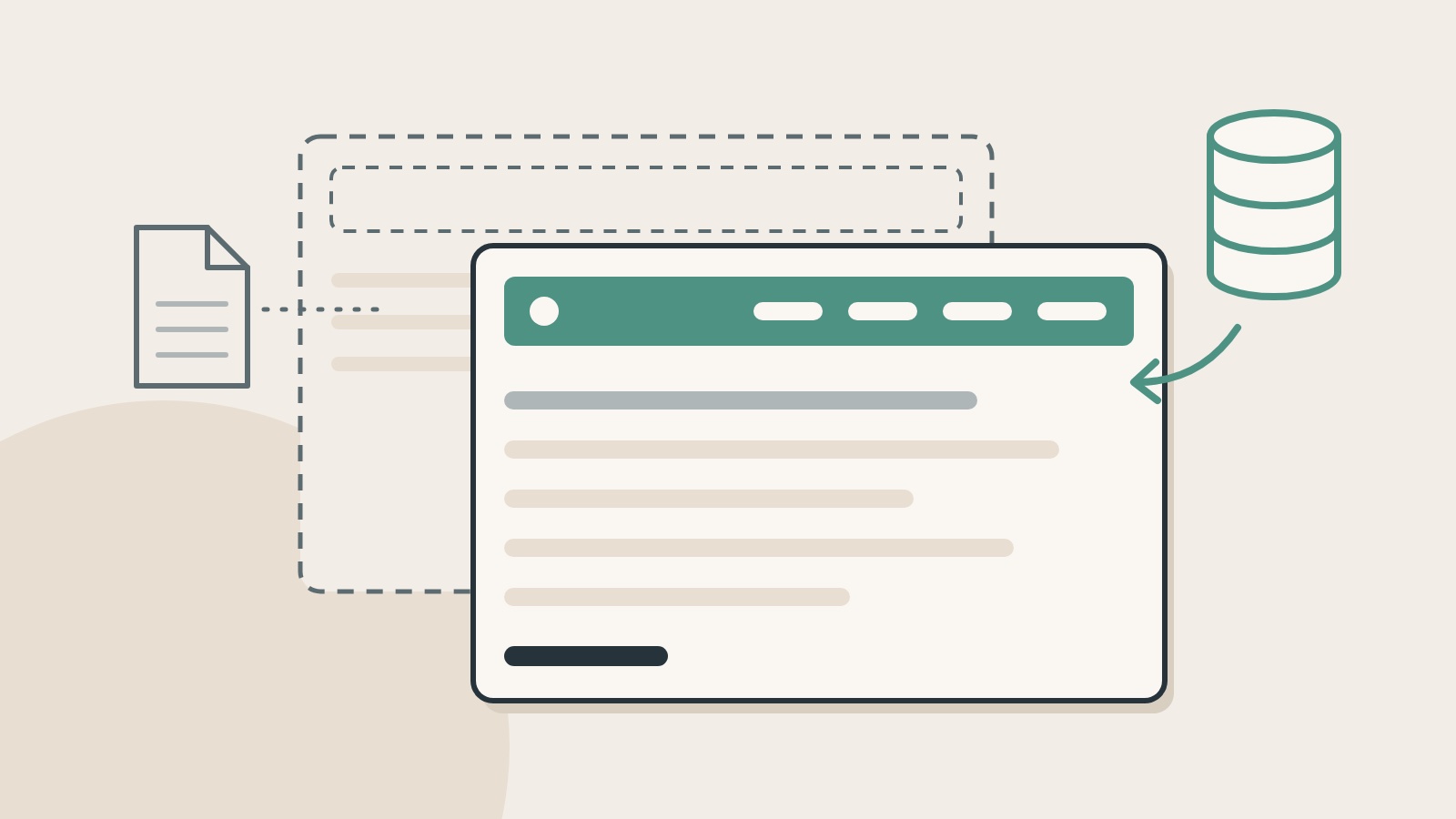
You edit a theme file, upload it, reload the page, and the old header is still there. On a block theme, the most likely reason is that WordPress is no longer reading that file. Someone saved that template or template part in the Site Editor, and the saved copy lives in the database and wins.
I ran into this on my own site this month, so here is what is happening and how I check for it.
The saved copy outranks the file
Block themes ship their templates and template parts as HTML files: a header, a footer, a single-post layout. When you change one of those in the Site Editor and save, WordPress doesn’t rewrite the file. It stores your version in the database.
The WordPress theme handbook is direct about the result. In its description of how templates are chosen, a user-saved template in the database comes first, and saved changes “will overrule any templates in your theme.” Template parts work the same way and are stored as posts of their own type.
From then on there are two headers. One is the file in the theme folder, which your developer or your deployment process changes. The other is the saved copy, which the website actually displays. Editing the first has no visible effect until the second is removed or brought into line.
What it looked like on my site
At the start of November I added a search field to this site’s header. I saved that change in the Site Editor, and I made the same edit in the theme’s header file. A day later I pointed the Newsletter link at a new page and had to make that change in both places again. In the same week a footer change went out as a theme file only, and it appeared right away, because nobody had ever saved the footer in the editor.
WordPress will tell you which situation you are in. When I ask my site, it reports the header as a customized copy and the footer as coming straight from the theme. In the Site Editor, the header’s Actions menu now offers Reset and a list of revisions.
This is a common confusion. In the WordPress support forums this year, one site owner asked why a page template could not be reset to its default, and another could not work out which footer the homepage was really using after replacing it in the editor.
How to check in two minutes
- Confirm it is a block theme. If the Appearance menu has an Editor item that opens the Site Editor, it is.
- Find the piece that isn’t updating. In the Site Editor, template parts such as the header and footer are listed under Patterns, and page layouts under Templates.
- Open its Actions menu. If you see Reset, a saved copy exists and is overriding the theme file. The labels have moved around between WordPress versions. On mine, which runs 7.1, it is Reset.
- Look before you reset. Someone made that change for a reason. Reset discards the saved copy in favor of the file, so read what the copy contains first.
Decide which copy should win
- The file wins. Move any changes you need from the saved copy into the theme file, deploy it, then reset the saved copy. This suits a site where a developer maintains the theme and changes go through version control.
- The editor wins. Leave the saved copy in place and make future changes there. This suits an owner who edits the site directly. Remember that a later theme update to that file will not show.
- Both, on purpose. Keep the two in sync and write down that you are doing it. That is what I do for my header right now, and I recorded it in the theme’s notes so the next person, including me, doesn’t lose an afternoon. It is the most work, and I would only do it for a while.
If there is no saved copy
Then the cause is somewhere else. The usual suspects:
- A cache. The host’s page cache, a content delivery network or the browser. Check the page signed out, in a private window.
- The wrong theme. The edit went into a parent theme while a child theme is active, or into a theme that isn’t the active one.
- The file never arrived. Compare the file on the server with the one you meant to upload. I check a deployed stylesheet by comparing its hash with the one in my repository.
In 2012 I answered a batch of WordPress questions on this blog, and the advice for a plugin error was to switch things off one at a time until the problem went away. The principle hasn’t changed: find out which layer is producing what you see. It is also why I start with the state a system is actually in before I change anything.
Tracing a problem like this is part of a WordPress audit and tune-up at Market Jack, my consulting practice. My skills and services page describes the other work I take on. If a change on your site isn’t showing up, tell me what you changed and what you still see.